My first webinar
Hi all,
So, it has been way too long since I have posted anything on this blog, so time for a little update on what I have been doing.
Hi all,
So, it has been way too long since I have posted anything on this blog, so time for a little update on what I have been doing.
Hi all,
Just before new years I uploaded my XenServer documentation script to GitHub, you can find it here:
In this post I will go through how to use the script and how to report any feedback to me. I also want to do a huge shoutout to Iain Brighton for making the PScribo module which is just awesome for report making!
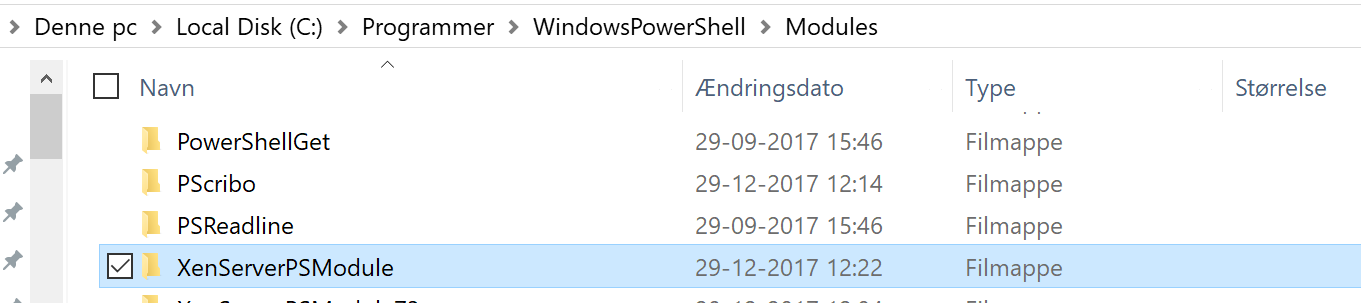


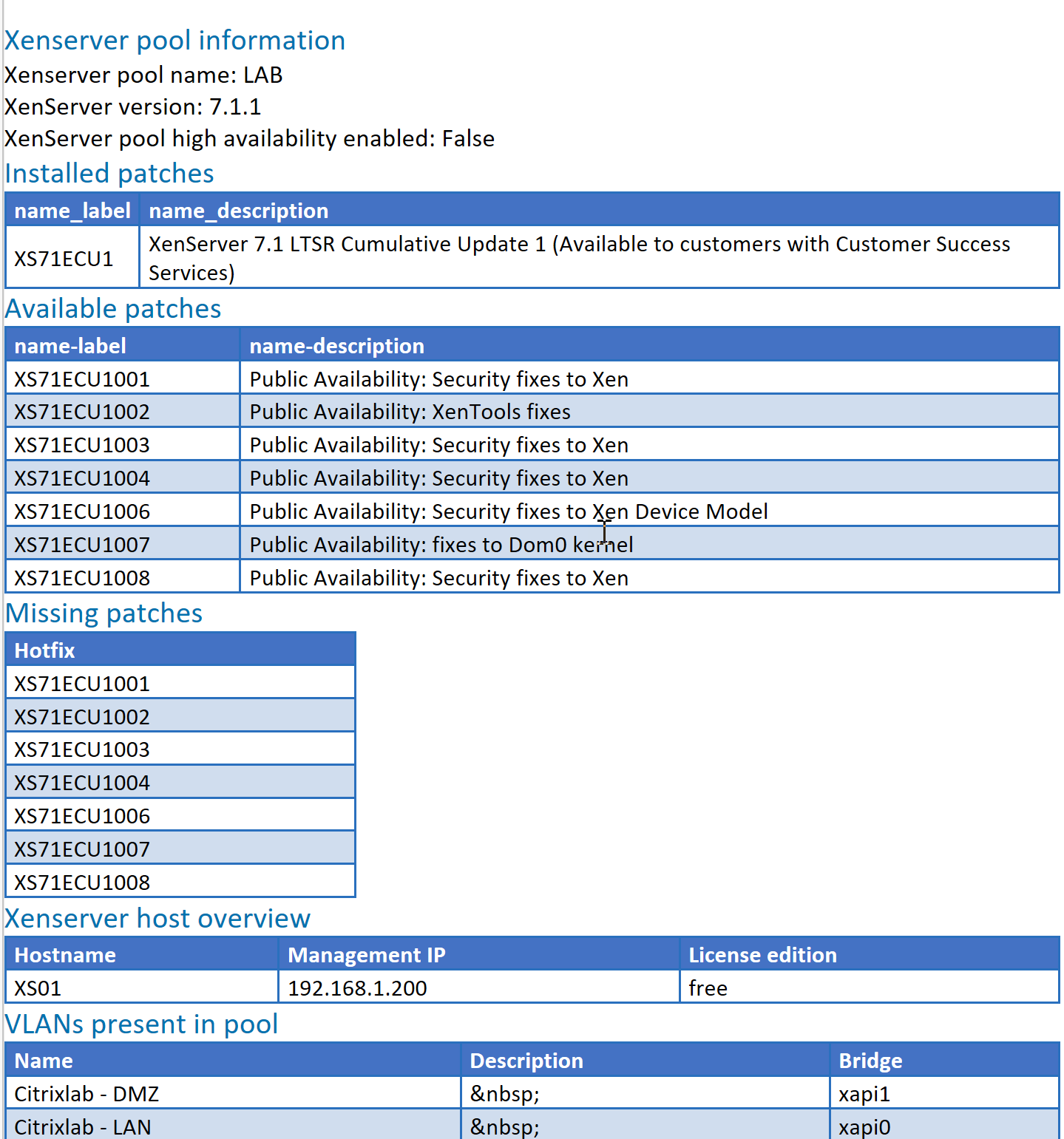
I hope you can use this script for your environments and if you have any enhancements you want in the script let me know. You are also more than welcome to provide any other feedback and bugs to me via twitter @mracket or the GitHub page https://github.com/mracket/XenServer-DocumentationScript/issues
/Martin
Hi all,
Looking back at 2017 I really appreciate my family and how much support I get from them. My wife and kids are the foundation for me to be able to do the work I do and being able to give something back to the tech community that I have gotten so much from myself, so THANK YOU to them.
2017 was finally the year that I got started blogging, and even though it has been a while since I have posted on this site I have had a blog post on www.mycugc.org in the meantime and I have a few coming up as well. The next post will be on my newly released documentation script for Citrix XenServer if you have seen my twitter post I have started putting up my scripts at https://github.com/mracket
2017 was also the year where I got the honor of becoming a member of the Citrix CTA program. This is something that I am really proud of since the programs like CTA and CTP has always been filled with people that I have gone to for knowledge and help on installation and configuration of Citrix related software.
When I am looking into 2018 I have several goals I hope to achieve. The first is to keep blogging on this site and also do some more posts on mycugc and maybe also FSLogix which I have also been lucky enough to do in 2017. The next goal I have is to do a presentation in English in front of a live audience, I have already gotten a good opportunity from Eric aka. @XenAppBlog for a webinar which will be my first English presentation and hopefully a lot of fun.
Besides the above, I just want to wish you all a happy new year and I hope you all have a fantastic 2018.
/Martin
Hi all,
In this part, I will test the three different solutions I covered in the first two parts of the blog series. The tests will be performance tests, but I will also cover what the profiles contain of information. I will also show you the configuration I have used for each solution so you can do your own tests if you want to. Before I get into the details I want to thank FSLogix and LoginVSI for their help and support with these tests and ControlUp for their free tool called App Profiler.
I will be doing two tests on each solution, one test with a single user on the server and one where I use LoginVSI to simulate a user load on the XenApp server. LoginVSI will use the knowledge worker 1 cpu profile and load 5 users onto the XenApp server. The tests will be showing login times for a user that is using Outlook 2016 connected to Office365, it will also show the application launch time by using ControlUp App Profiler. I will be doing 10 logins per test and use the average time in the comparison. For all solutions, the first login will be both creating of the profile and start of Outlook will be with configuration of the account. I will let Outlook sync the mails it needs to at the first start of Outlook. For MS Roaming and Citrix UPM I have set the sync interval for 1 month of mail whereas FSLogix will contain the entire mailbox.
My XenApp server is running on XenServer and it has 4 vCPU and 8GB RAM. The image for all three solutions is from PVS and it is the same image booting all three XenApp servers. If you would like more details on my test setup please let me know.
MS Roaming Profiles
The table below is for MS Roaming profiles. The settings used are shown below the table.
| Run | Single user | Multi user |
|---|---|---|
| Login time | Outlook startup time | Login time |
| 1st run | 16,46 sec | 1,638 sec |
| 2nd run | 20,01 sec | 9,649 sec |
| 3rd run | 24,68 sec | 7,44 sec |
| 4th run | 23,01 sec | 7,771 sec |
| 5th run | 18,87 sec | 6,114 sec |
| 6th run | 19,74 sec | 8,748 sec |
| 7th run | 23,05 sec | 12,239 sec |
| 8th run | 20,18 sec | 8,227 sec |
| 9th run | 18,12 sec | 7,883 sec |
| 10th run | 19,46 sec | 6,646 sec |
| Average | 20,36 sec | 7,6355 sec |
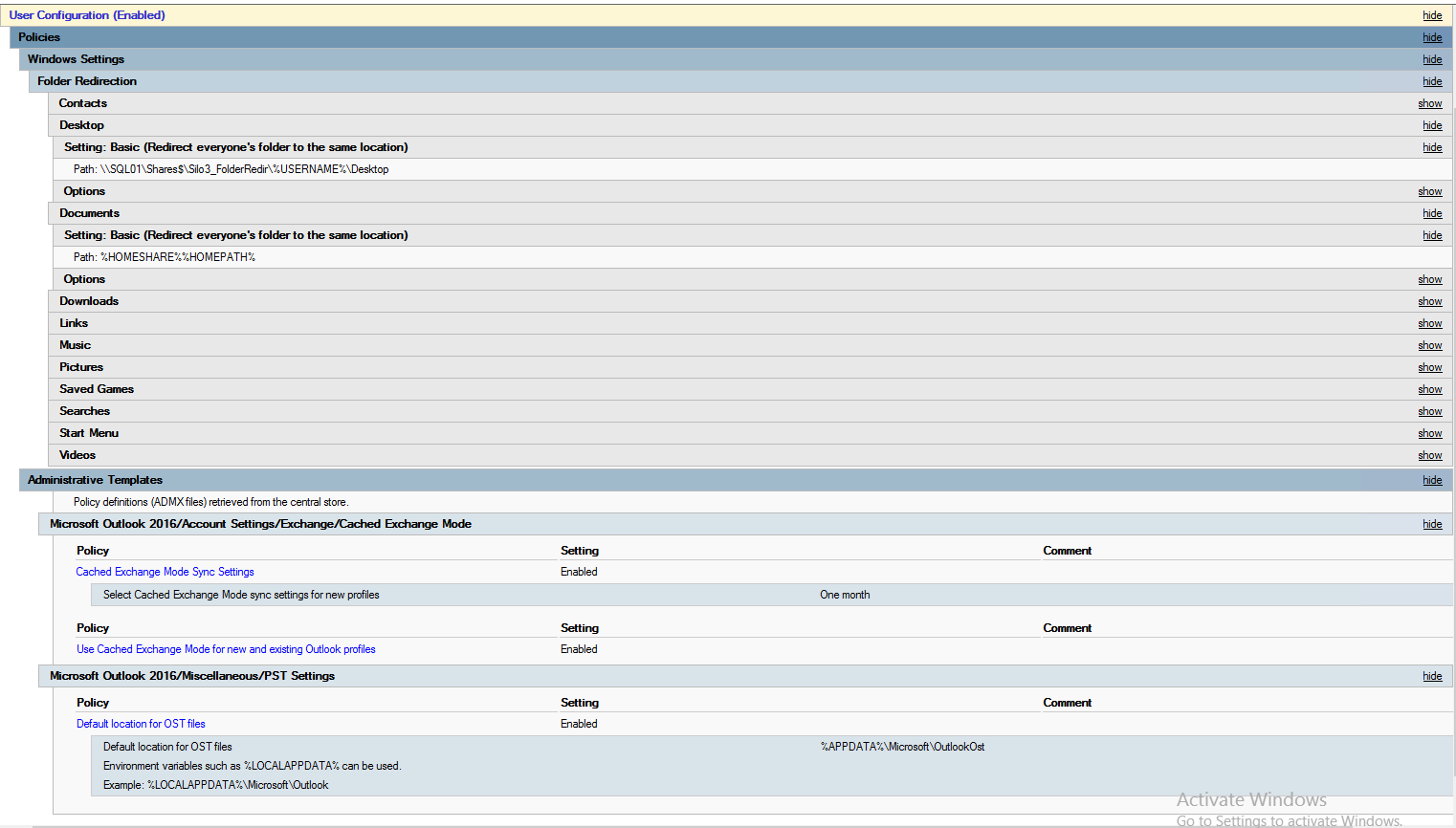
Profile size after the tests is 115 MB and contains the following folders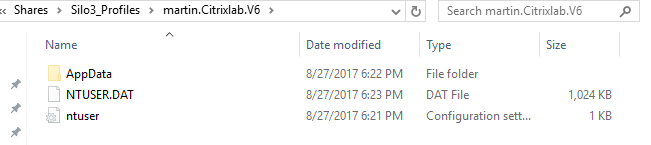
Citrix UPM
The table below is for Citrix UPM profiles. The settings used are shown below the table.
| Run | Single user | Multi user |
|---|---|---|
| Login time | Outlook startup time | Login time |
| 1st run | 14,26 sec | 3,689 sec |
| 2nd run | 9,53 sec | 11,704 sec |
| 3rd run | 9,30 sec | 13,031 sec |
| 4th run | 10,59 sec | 10,335 sec |
| 5th run | 9,98 sec | 9,182 sec |
| 6th run | 11,07 sec | 10,322 sec |
| 7th run | 9,62 sec | 11,01 sec |
| 8th run | 9,86 sec | 11,886 sec |
| 9th run | 9,64 sec | 12,845 sec |
| 10th run | 9,65 sec | 12,049 sec |
| Average | 10,35 sec | 10,605 sec |
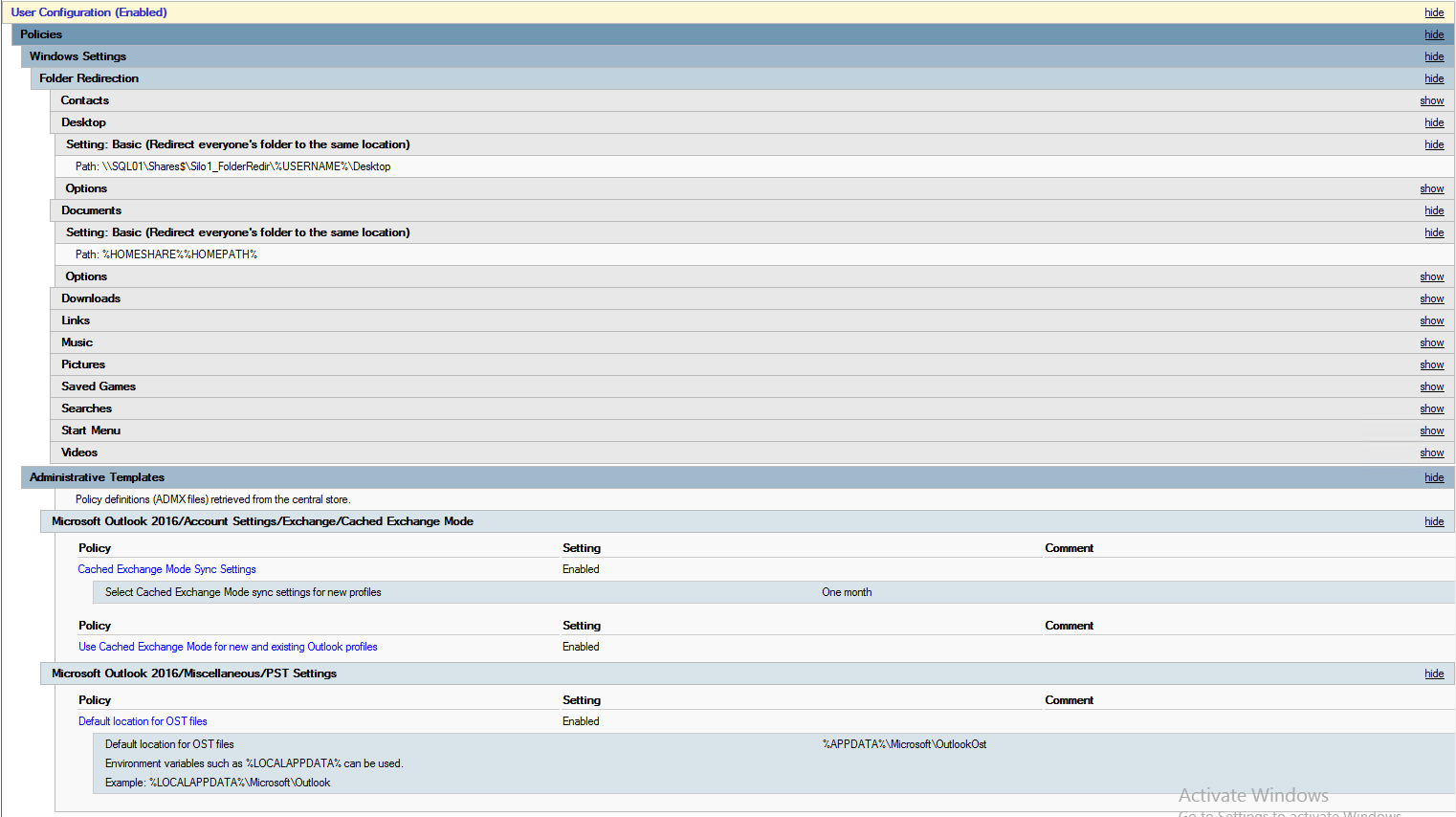
The profile size after the tests is 166 MB and contains the following folders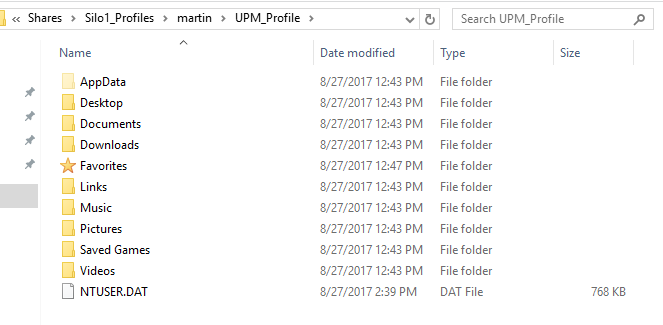
FSLogix Profile Container
The table below is for FSLogix profile container including Office365 containers. The settings used are shown below the table.
| Run | Single user | Multi user |
|---|---|---|
| Login time | Outlook startup time | Login time |
| 1st run | 13,05 sec | 2,292 sec |
| 2nd run | 4,19 sec | 7,462 sec |
| 3rd run | 4,29 sec | 6,273 sec |
| 4th run | 4,25 sec | 4,621 sec |
| 5th run | 3,97 sec | 4,294 sec |
| 6th run | 4,53 sec | 5,217 sec |
| 7th run | 3,88 sec | 5,124 sec |
| 8th run | 4,03 sec | 5,03 sec |
| 9th run | 3,99 sec | 4,81 sec |
| 10th run | 4,05 sec | 4,623 sec |
| Average | 5,02 sec | 4,9746 sec |
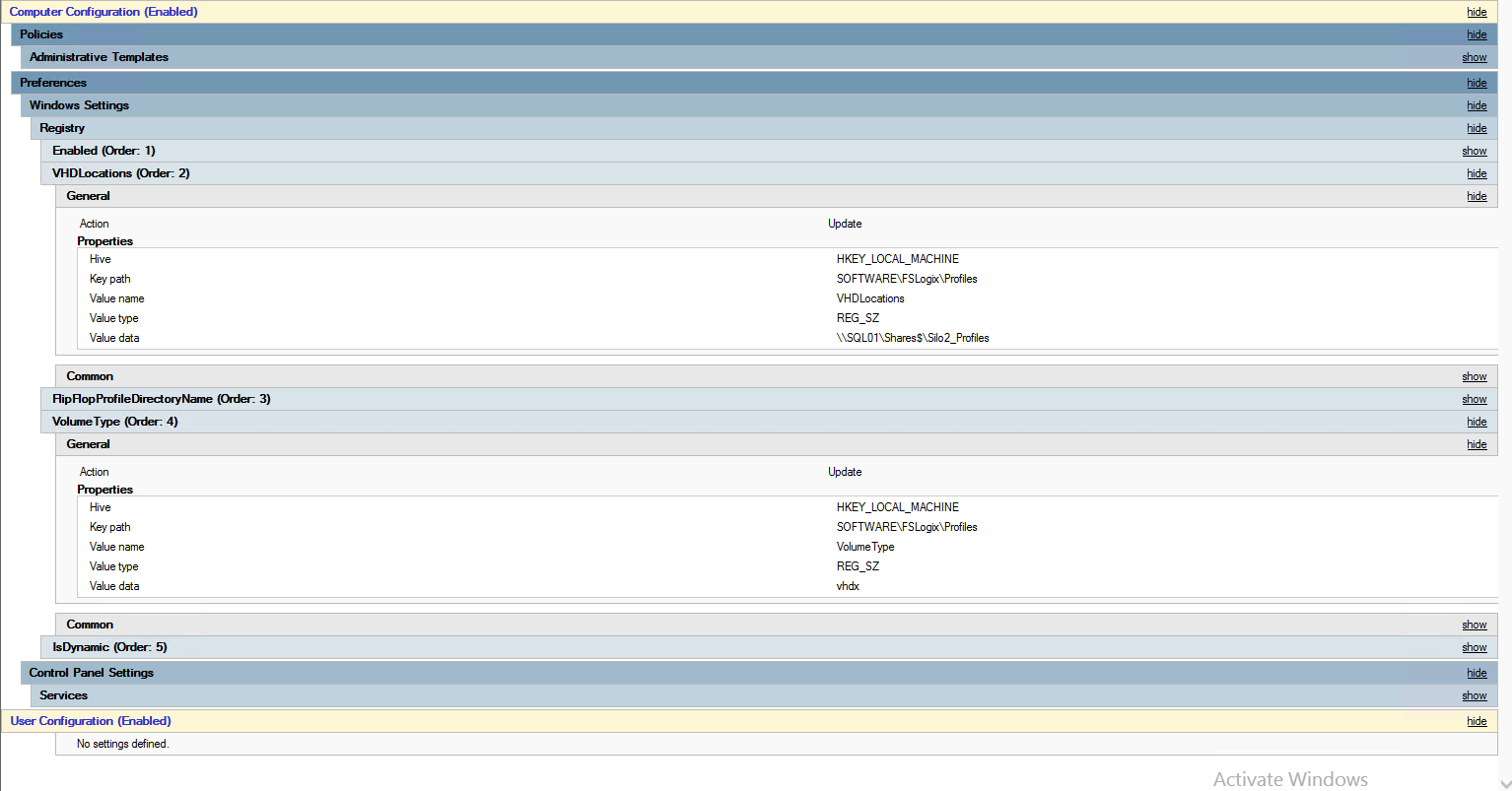
The profile size after the tests is 1,37 GB and contains the all the normal folders from a profile but saved into a VHDX file. The VHDX contains these folders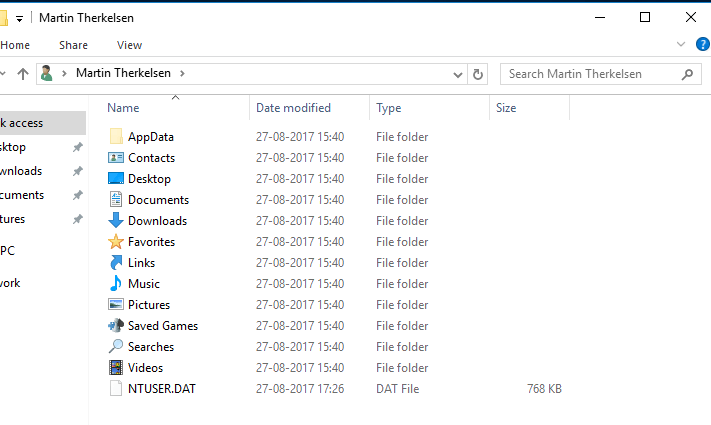
Conclusion of the results gathered
Based on the test results listed above I can conclude that even though FSLogix has the largest profile by far, it is as expected the fastest option when using Office 365. Not only is it the fastest solution but also the only solution that will let the users have a great experience with search in Outlook, a OneDrive for Business that will work on XenApp and a global address list for Skype for Business that will roam. The Skype for Business part of FSLogix might not be a big deal for everyone, but enterprise customers with a large user base will feel the difference with and without FSLogix. If you are not using Office 365, FSLogix will still provide a fast user login and provide the users will a profile very similar to the one they know from their laptop or desktop. If you are not using Office 365 Citrix UPM provides you with a very flexible solution to save user settings and it allows the administrators to pick and choose what goes into the profile and what doesn’t. When your Citrix XenApp environment doesn’t have much demands to customizing your profiles you can use MS Roaming profile solution. The MS Roaming solution is very well tested and if you can settle with the shortcomings in customization it is very easy to setup and use.
If we dig into the results I got from my tests I can see that MS Roaming profile load isn’t much different with and without load, that kind of surprise me since it needs to load a big chuck on files. In fact, if we look at the average of the profile load we can see that it is slightly faster when loading while running on a server with a user load. The Outlook startup time is also near the same, though around 2,5 seconds slower when the server has a user load.
When we look at the Citrix UPM solution the average login times are 10,35 without user load and 15,21 with a user load, this is about 33 percent increase which is quite high I think. The Outlook startup time behaves the same as the login times and goes from 10,605 seconds to 16,5776 seconds again around 33 percent increase.
The FSLogix tests has the best scores both with and without user load where it goes from 5,02 seconds login time to 6,59 seconds and the Outlook startup time goes from 4,97 seconds to 6,97 seconds. The results here are for me surprisingly good and the increase is on a level where a user probably won’t notice anything.
There are definitely a lot more tests that I could do to compare these profile types and products, and I might pick that up at a later time where also other vendors might get into the testing. I hope that these tests and results can be useful for you and if there is something that I really need to get tested let me know and I will do that.
If you are interested in knowing more about setting up FSLogix Profile Containers have a look at this great article from Aaron Parker:
http://blog.fslogix.com/fslogix-profile-containers-and-office-365-containers-deployment-guide
Hi,
In this part, I will dig into each of the products that we are going to test in this blog series. The three products are, Microsoft Roaming Profiles, Citrix Profile Management and FSLogix. These three products actually hit three different types of profiles, we have the roaming, hybrid and local profile. FSLogix is a local profile, but because of the smart way FSLogix works the actual files and folders in the profiles are save inside of a VHD/VHDX file on a network share.
Let’s get into it 🙂
Microsoft Roaming Profiles
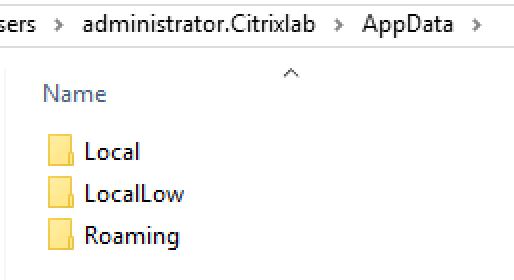
Microsoft roaming profiles is the solution that has been used for the longest time because it has been built into Microsoft Windows Server and desktop operating systems since Windows NT Server 3.1 and Windows 95. Roaming profiles are simple put the normal local profile that is saved on a network share at logoff and loaded from the network share at login. The previous statement isn’t completely true because not everything from the local profile is saved to the network share, only the roaming part of the profile. If we look at the profile for a user we have these folders under the AppData. It is only what is placed in the roaming folder that is saved to the network share in a setup with Microsoft Roaming Profiles.
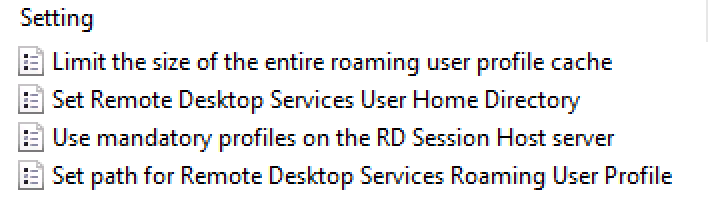
The settings below are all you can set for roaming profiles in the GPO’s. The setting “Set path for Remote Desktop Services Roaming User Profile” is all you need to set to enable roaming profiles for all servers that the GPO is linked to.
This solution doesn’t leave a lot of options for customizing the profiles, it is setting the GPO to point to a network share and then the configuration is done. One of the settings we can do is making sure administrators have access to the profiles (or is denied the access) by setting another option in the GPO for profile configuration. This setting and the others are shown below. Notice the “Set roaming profile path for all users logging on this computer”, this setting is used if you want to use roaming profiles on your regular Windows 7/10 machines.
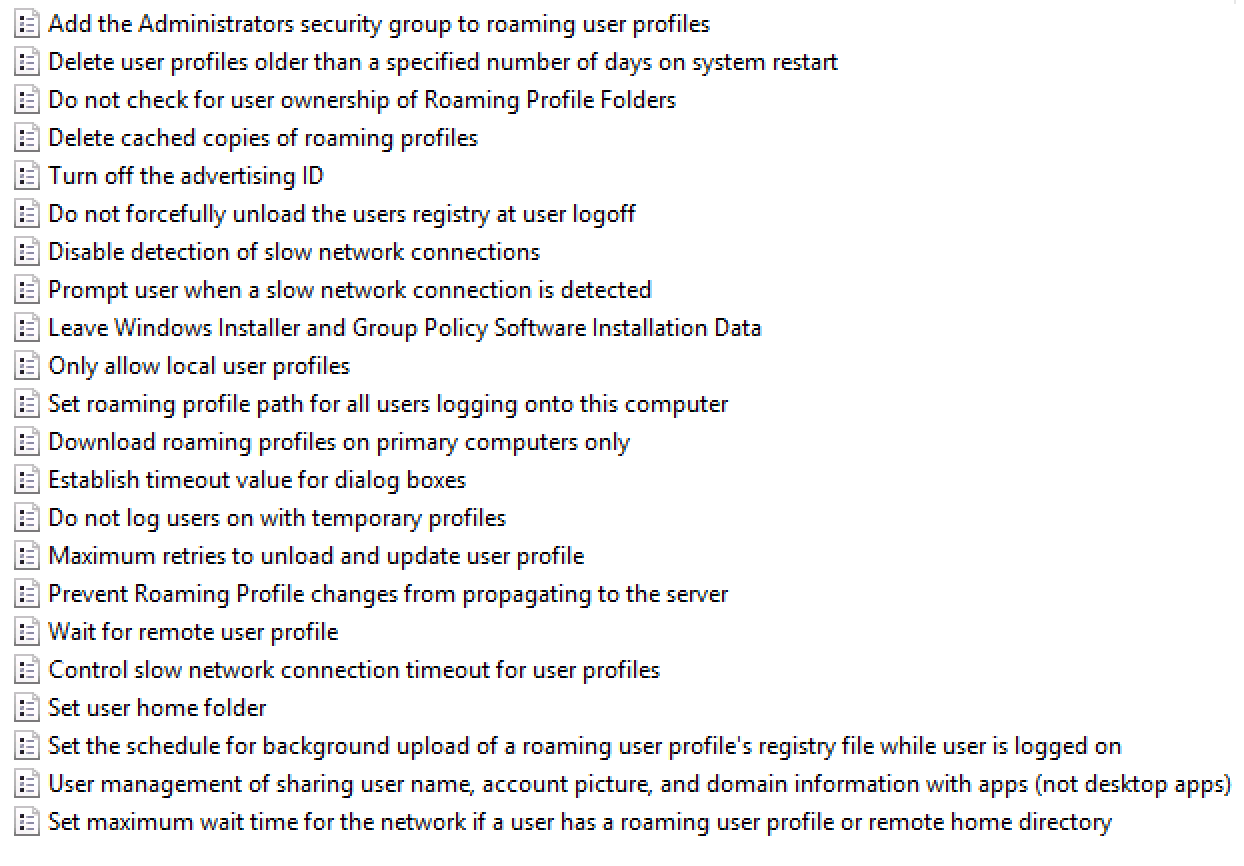
A few settings you might want to consider is the “Delete cached copies of roaming profiles” and “Do not check for ownership of Roaming Profile Folders”. You should of course consider all the settings and decide if they are relevant to your environment.
In my test setup in this blog series I used these Remote Desktop Roaming Profile settings:
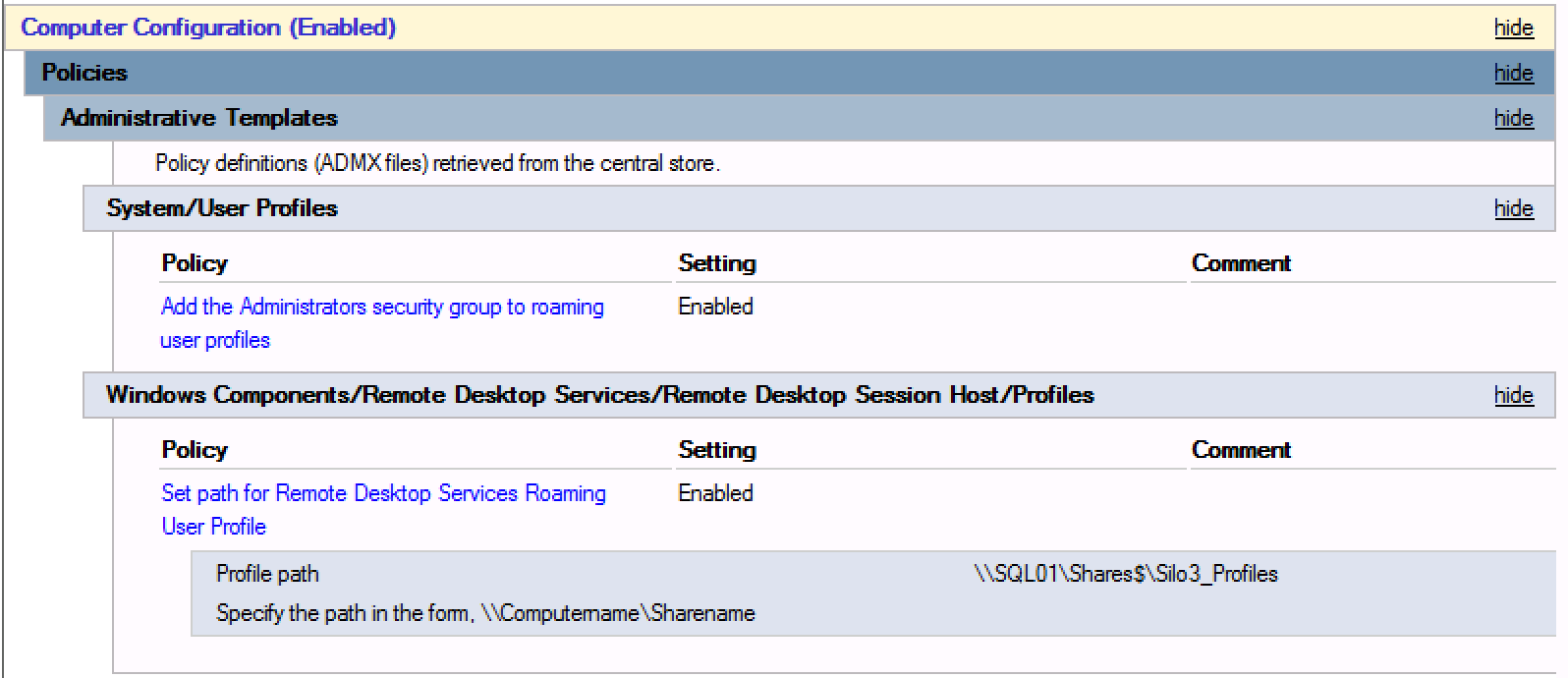
The profile path is on my SQL server which has a disk stored on local SSD in my XenServer.
Citrix Profile Management
Citrix profile management (UPM) is a hybrid profile solution. Hybrid means that you can customize your profile to include and exclude files and folders so that you get all that you need in your profile without getting a lot of extra files and folders that you don’t need. UPM has a lot of settings that you can customize so in this series I have focused on the ones I hear about the most and the ones I use the most.
Profile Streaming:
Profile streaming lets the profile load faster because it downloads the files when the OS asks for them instead of loading the whole profile at login. This also gives a profile load at almost 0 since Citrix Profile Streaming reports the profile loaded instantly when the OS asks for it. Some applications use AppData intensively and when AppData is not redirected (I don’t recommend redirecting AppData) you can enable always cache which adds performance for these applications. I always enable profile streaming and so far, I haven’t had a case where it does anything bad to the profiles.
It is important to notice that even though the profile load is instant that doesn’t mean that the file load time will be instant. The files must be loaded so the reduced load time will increase application load time instead.
Active writeback:
Active writeback ensures that the profile is written back to the file share whenever a change has happened. This adds additional load to the file server during the whole day whereas the profile share normally only gets hit when logon and logoff occurs. I normally don’t recommend enabling active writeback, but I have used this several times when I was seeing stability issues on file servers or network devices. In these cases, I get less corruption in my profiles then when I am not using active writeback.
Process Internet cookie files on logoff:
This one might be a no brainer but I wanted to mention it anyway. I always enable this setting so that my cookies are processed by UPM.
Standard exclusions for directories and registry:
In the newer versions of UPM 5.5 and newer there is a default list of folders and registry settings that can be enabled. I recommend settings these to start with but you really need to test the profiles and add/remove folders as your environment dictates.
FSLogix
FSLogix isn’t new anymore, but at the time of this writing it is the only solution that supports using Office365 for Outlook, OneDrive for Business and Skype for Business. FSLogix enables the users to have a real PC like feeling in the Office365 suite and all other applications. The smart way that FSLogix puts the entire profile inside a VHD/VHDX file and only access the blocks that the OS is asking for reduces the network traffic while still providing the user with a local profile, meaning everything they would have saved on a regular PC is now saved in your FSLogix Profile Container. Using FSLogix gives your users a really fast login and logoff time, but as written above the users will also have a great experience during the session because of the low bandwidth usage with FSLogix. By using FSLogix you only need to configure two things, and that is the profile path and enable FSLogix profiles. You can do some more advanced configurations with FSLogix as well to suit your environment, for instance you can choose the initial file size for the profile and you can also choose the format (vhd or vhdx). When using FSLogix for profiles do remember to size your fileserver accordingly. Compared to other profile management solutions FSLogix uses a lot of diskspace because it saves all the files a normal local profile would contain, this means that Outlook OST files for instance is save and they can be pretty large. The added diskspace should not be an issue since storage is pretty cheap, but it is important to size the solution properly.
FSLogix provides two solutions for profile management, one of them is the management of the “normal” profile and the other one is specific for the Office365 part of the profile. You will need both solutions if you want to have a pure FSLogix profile management solution, but you can also combine the Office 365 Containers with other profile management products like Citrix UPM or Microsoft Roaming Profiles. In the table below you can see the two FSLogix products in a comparison chart, so for instance if you can do without Search, you can go with only Profiles Containers, but to get the full user experience you will need both products. 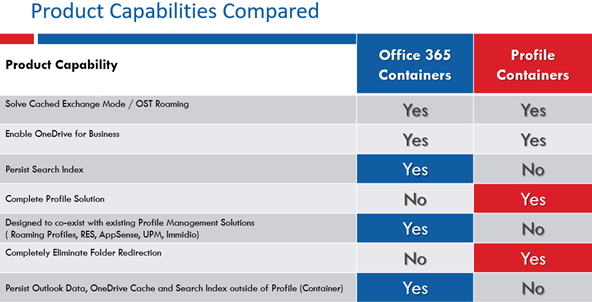
You can check out the complete settings for FSLogix Profile Containers here: https://docs.fslogix.com/display/20170529/FSLogix+Profiles+Configuration+Settings
You can check out the complete settings for FSLogix Office 365 Containers here: https://docs.fslogix.com/display/20170529/Office+365+Configuration+Settings