Skip to content

September 2017

Citrix App Layering – Basis configuration 4.2 – Part 1 and 2

Hi,

In this blog series I will walk you through the basis configuration of Citrix App Layering 4.2

This first post will contain part 1 and 2 of the configuration. Part 3 will be about role based access and part 4 will be on creating your first OS layer.

Part 1 – Getting the Citrix App Layering 4.2 appliance running

  1. Download the appliance from this link https://www.citrix.com/downloads/citrix-app-layering/product-software/citrix-app-layering-42.html
  2. Import the virtual appliance to the hypervisor of your choice, my choice in the guide is Citrix XenServer.
  3. After the appliance is imported you can grab the IP address and open a web browser and paste it in.
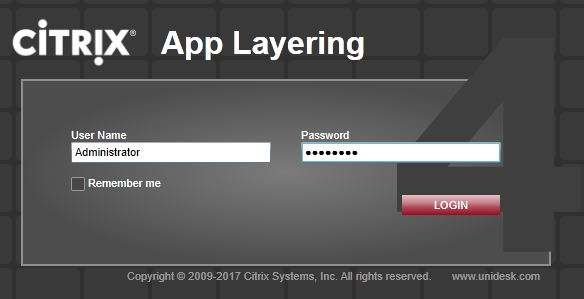
  4. When the page is open you will be asked to log in. Username is “Administrator” and password is “Unidesk1” by default. Screenshot_1
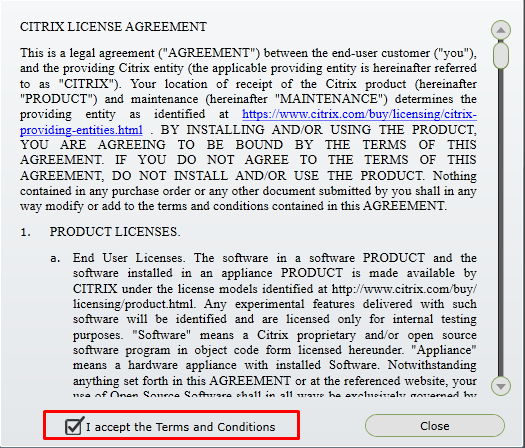
  5. Accept the license agreement and click “Close”. Screenshot_2
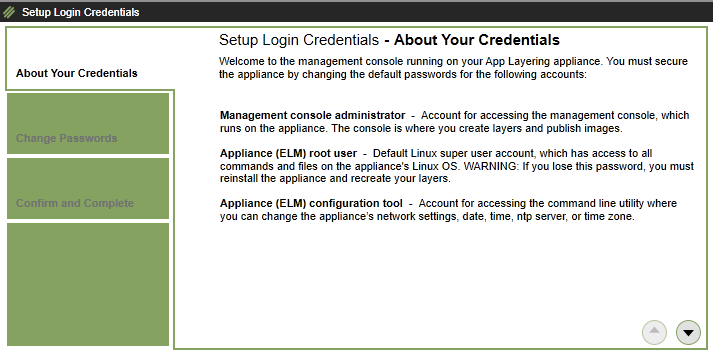
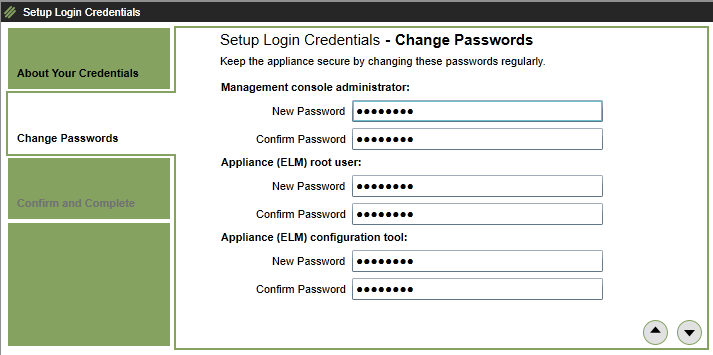
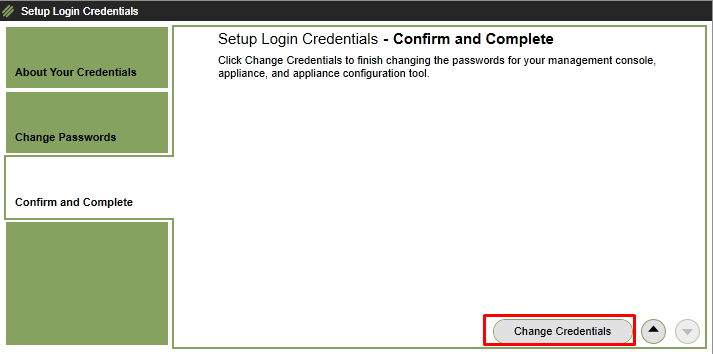
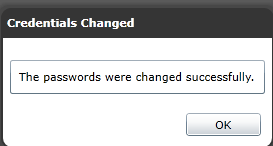
  6. Change the default password by following the guide as shown in the pictures below Screenshot_3Screenshot_4Screenshot_5Screenshot_6
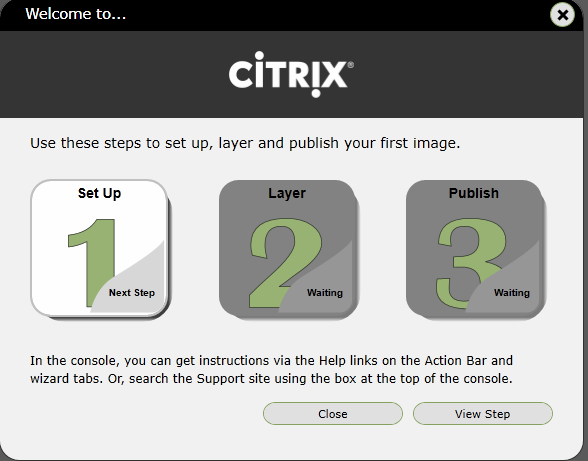
  7. You will now be presented with a small overview on which steps there are needed create a layer. You can click on “View step” which will take you to the online guidance on creating Citrix App Layers. Here I will click on “Close”Screenshot_7

Part 2 – Setting up file share for use with App Layering

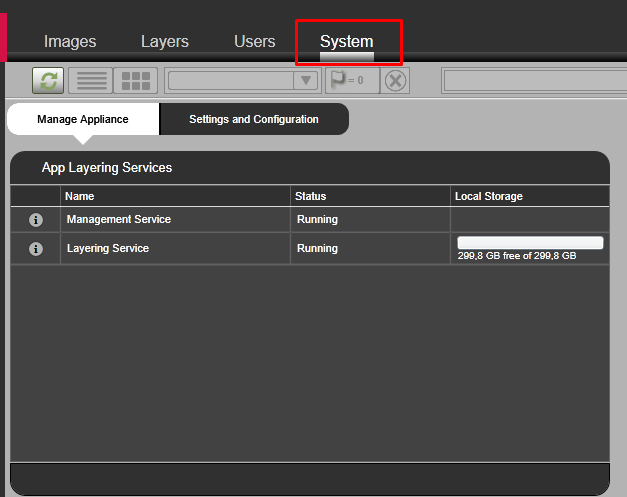
  1. Click on “System” Screenshot_8
  2. Click on “Settings and Configuration” Screenshot_9
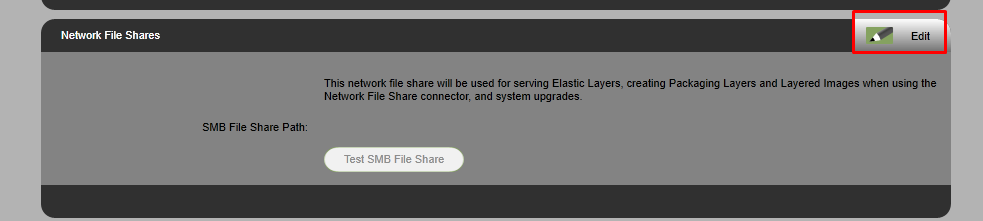
  3. Scroll down to “Network File Shares” and click on “Edit” Screenshot_10
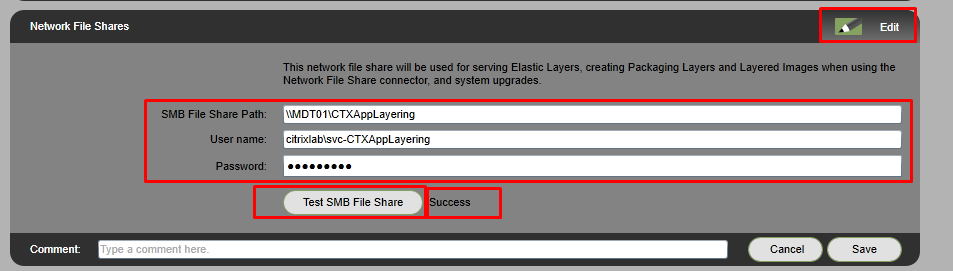
  4. Type in the path to a network share on a dedicated server or a shared file server. I always create a service account for these purposes, in the picture below you can see I named mine “SVC-CTXAppLayering”. Click on “Test SMB File Share” before you save and you should be a “Success”Screenshot_11

This concludes the first two parts of this guide. Part 3 will be up really soon.

Citrix Synergy – Recap

Hi,

I have just been at Citrix Synergy for my first time and I have to say it was awesome. I started the week early with instructor led labs on Sunday and Monday and then had an almost full schedule for the regular Synergy week. You can see my whole schedule in the bottom of this post.

One of my main goals for the week was to network with others that I have only talked to online and try and meet new people as well. To be honest this is actually a difficult task for me, but I did manage to talk to some great people that shared information and insights and I really appreciate that! During my week, I talked some automation with Dave Brett and he showed me some of the work he has been doing on using Octoblu with Citrix NetScaler and it is really impressive. Thanks Dave for sharing!

I also talked some IoT and PowerShell with Chris Matthieu who is one of the co-founders of Octoblu and besides from knowing a lot Chris also shares a lot and listens to input from the community. I really hope to be able to create some good workflows with Octoblu and sharing them with the community so thank you Chris for being so inspiring and helping me get started with Octoblu. After my instructor led lab with Chris and Peter I posted what we did on the lab and my thoughts about it. You can read that here: http://citrixlab.dk/?p=257

On the knowledge side, there was a lot of good sessions, but to mention two that stood a bit clearer to me than the others were SYN306 with Andy Wood and Jim Moyle and SYN132 with Thomas Berger, Christian Reilly and James Bulpin. The first session with Andy and Jim was both very fun to attend and the scripts and work they presented was great and something that you can take home and apply to just about every customer with PVS installed. The second session was great because of the views that was presented and the way it was presented.

Besides the regular sessions I also had a fireside chat session about IoT and Octoblu. This session was good because of the relaxed attitude, the questions from both James Bulpin and the audience and lastly the awesome demos from Dave Brett and Tobias Kreidl. Dave showed of Octoblu turning on and off vServers and auto-scaling of web servers, and Tobias showed what Octoblu can do for home automation.

The keynote session with General Colin Powell was also one of the best presentation I have ever heard. When he talked he was so inspiring, the way he told stories from his time as secretary of state really inspired me and from what I picked up from the crowd everyone else had the same feeling. The way General Colin Powell talked about leadership and how to be a leader seems like something every leader should hear and think about.

If I get a chance to go to Synergy next year my main goal will be the same and after this year I do think I will be a lot easier to go and talk with just about anyone who wants to talk about Citrix and automation.

If you are not following the people I have mentioned here on twitter you should really do so, here are their twitter profiles:

https://twitter.com/tberger80

https://twitter.com/JamesBulpin

https://twitter.com/reillyusa

https://twitter.com/dbretty

https://twitter.com/gilwood_cs

https://twitter.com/JimMoyle

https://twitter.com/tkreidl

https://twitter.com/chrismatthieu

https://twitter.com/xenappblog

My schedule was:

LAB608: Workspace IoT makerspace

LAB609: Deploying Workspace Environment Management for XenApp and XenDesktop

LAB615: Deploying and automating Citrix solutions with Citrix Cloud and AWS

KEY001: Vision Keynote

KEY002: Technology Keynote

SYN413: Microsoft Containers in a Citrix world

SYN306: Solving PVS challenges with simple shell scripts

SYN103: Citrix App Layering

SYN131: Citrix Workspace IoT

SYN401: Fireside chat with IoT experts about automating Citrix with Octoblu

KEY004: Innovation Super Session – General Colin L. Powell, USA (Ret.)

SYN132: It’s the end of work as we know it

SYN330: Optimize and scale your XenApp and XenDesktop platform the CTP way

SYN205: Hot Topics Roundtables

SYN106: Fantastic four: the do’s, don’ts and lessons learned of Citrix implementations

Citrix Synergy – IoT and Citrix Octoblu

So, attending my first Citrix Synergy this week and starting it all off with some instructor led labs.

A little background on workspace IoT is that it connects apps, data, devices and people. The goal is to create the best user experience and reduce the complexity for users. Combining applications, data and users with IoT you have the ability to make information flow both ways in an infrastructure and using analytics/BI you can makes the information easy to read and use.

IoT is about engaging with devices and depending on what is happening in the space around a device different things can be started, shutdown or any other action you want to happen. The workspace hub can collect information from devices and upload and interact with other systems to offload for instance healthcare data for a patient from an iPad into the medical journal when entering a room.

Boundaries can be Wi-Fi or Bluetooth and there can be multiple boundaries inside of the same building.

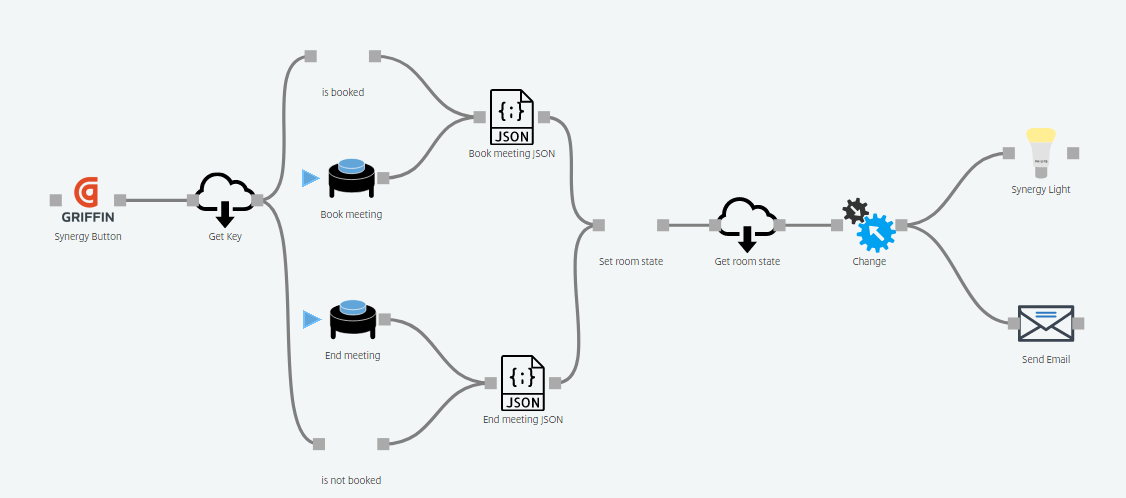
The lab about workspace Internet of Things (IoT) was very good and we learnt how to setup a basic flow that can be used for meeting rooms. The session was intended to get started with Citrix Octoblu and after the session we had an idea about how a meeting room could be set up to make it easier for end users. The flow didn’t integrate with Skype for Business or any other online meeting provider, but it did show what was needed for the rest of the workflow. When I get back after Synergy I hope to try the Skype for Business integration so we can demo how it is working for our customers. Below is a picture of how the workflow we created looks.

Screenshot_1.png

If you have any use cases about using IoT I would love to hear about it.

To find more information about workspace have a look at this page:

https://www.citrix.com/products/smart-spaces.html product information page

Turbo.Net – First try

Screenshot_10

Hi all,

So, the other day Turbo.Net caught my eye on twitter. I have known about the product for quite some time, but never really got around to really trying it out. After writing a bit with Kenji (@TurboKenji) about Synergy I couldn’t let it be anymore, so tonight I downloaded the single user application from the www.turbo.net website and installed it.

The installation with as simple as can be… Hit install and wait for a min and you are ready to go. The client can be started and you need to login with your account (If you haven’t got one create it on the turbo.net website) and then search for apps that you want to run. I searched for Notepad++ even though I had it installed already, but it was found and a click and it was running using the Turbo.Net container. This might not sound like a big deal, but when you think about it the possibilities with this sort of software is almost endless. From an admin point I only need to install one application to allow my user to run a huge number of application each in its own container. There seem to be several ways to adjust how much integration you want each application to have with the master OS and other applications, this is something I haven’t looked at yet, but I will get into that after Synergy.

From my own point of view, I will also try to see how many of the applications I have on my laptop now that are also in the Turbo.Net “store” to see how small a footprint of installed apps I can get down to on my laptop. I would be awesome to have an almost clean Windows 10 and just the Turbo.Net client installed, but more to come on that later.

Next week is Synergy and I hope to meet a lot of new people and get some interesting talks around Citrix and the applications used along with XenApp/XenDesktop. Also hope to get into some automation chats with other enthusiasts at the conference.

/Martin

Nutanix integration with Citrix Director

Hi all,

In this post, I will show you how to integrate Nutanix Cluster and Citrix Director which provides you with some cool data in your Citrix Director. The data from Nutanix can really help you provide a great initial indication on where a problem might be, and on the flip side it also shows you how great your system is running. If you want to view a video on this instead (or as well) of reading the blog I have put one on youtube for you. You can see it here: http://youtu.be/l8-8dnembOc?hd=1

So here goes.

Grab the Nutanix Director plugin from the Nutanix support portal, you will need an account with access to login here.

When you have, the plugin downloaded we are ready to begin the installation.

Step 1

Step 1 is to create a user on the Nutanix Cluster that we can use in Citrix Director. So, log into Prism – Click on the wheel in the top right corner and select “User Management”
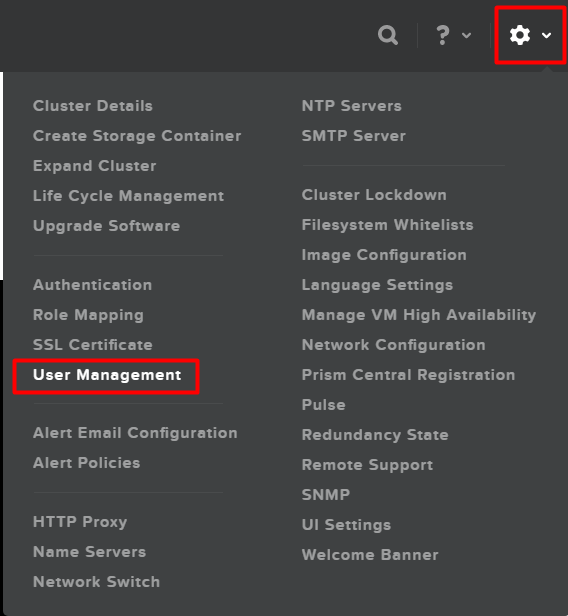
Screenshot_19

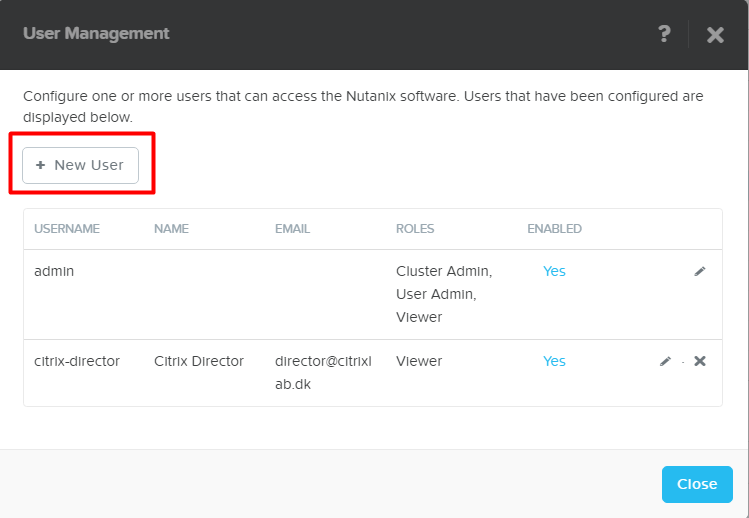
Click on “New User”

Screenshot_20

Fill out all the fields and do NOT select “User Admin” or “Cluster Admin”, the role will then be viewer which is just fine for this integration. When all fields are filled click on “Save” and then “Close” to end the user management.
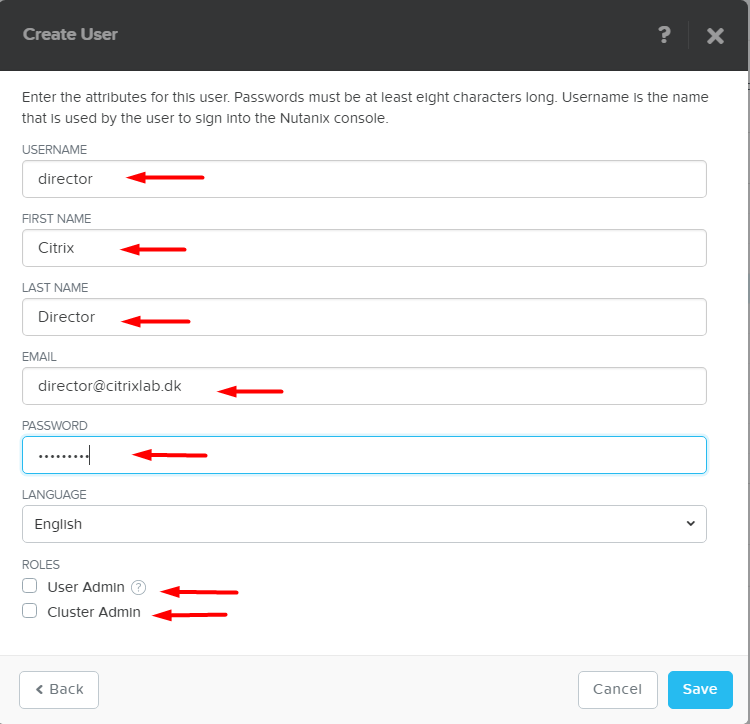
Screenshot_21

Step 2

Copy the Nutanix Director plugin to the Citrix Director server so that we can start the installation.

When the files are on the server proceed with the guide below.

Double click the installation file as marked below.

Screenshot_2

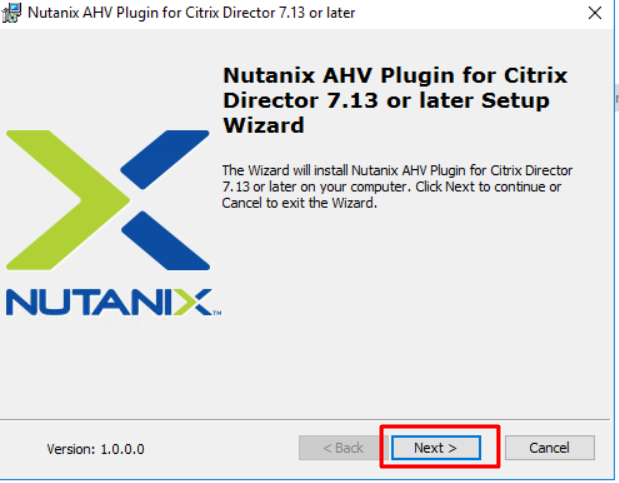
Verify that you are installing the correct version, in the picture below we have the plugin for Citrix Director 7.13 which is what I have in my lab environment. Click on “Next” when ready
Screenshot_3

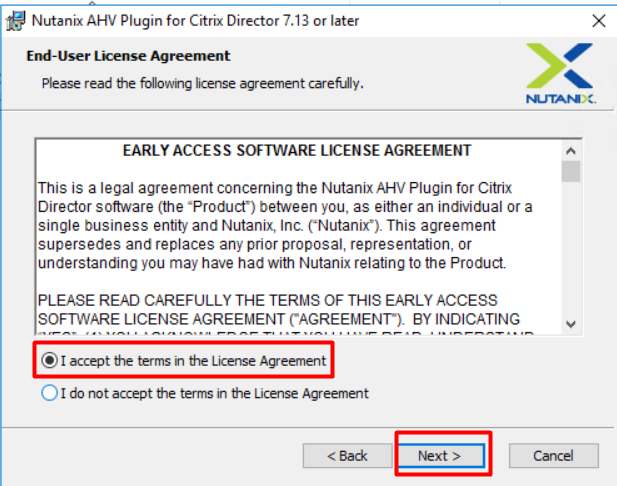
Ready the EULA, mark “I accept the terms in the License Agreement” and then click on “Next”
Screenshot_4

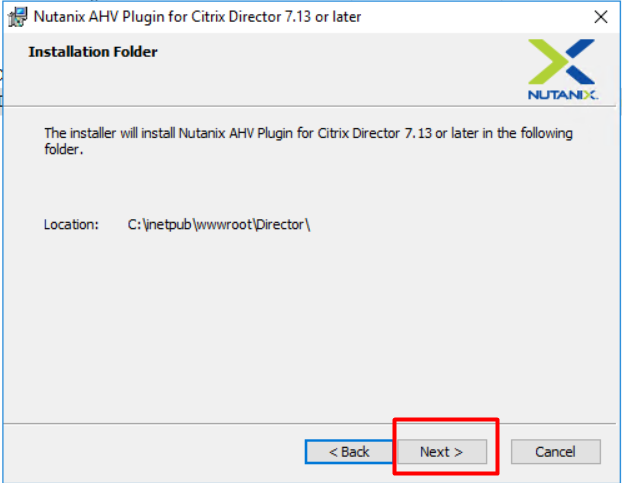
The installer finds the Director folder and will install in this folder as well. Click “Next” to continue.
Screenshot_5

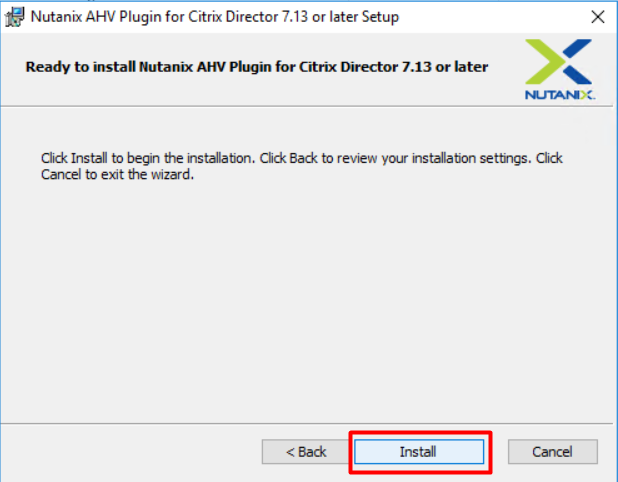
Click “Install” to start the installation. During the installation, the IIS service will be restarted, so if you are doing this in a production environment please notify any potential users of Citrix Director.
Screenshot_6

When the installation is completed you need to add a connection to the Nutanix Cluster. This is done by clicking on “Add Connection”
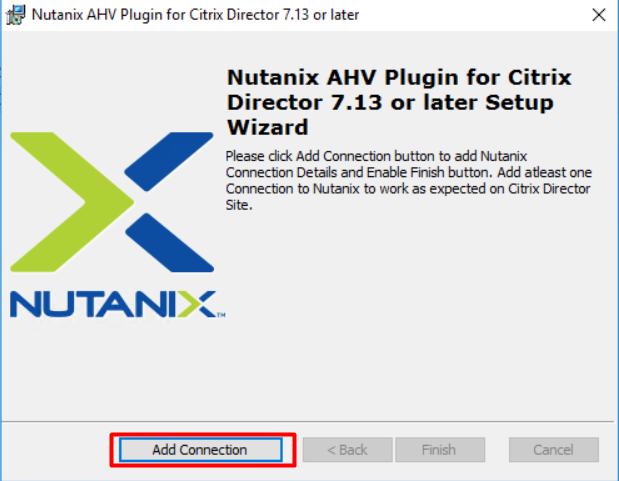
Screenshot_7

On the next screen, you need to type in your CVM server if you have a single node cluster or the “Cluster Virtual IP Address” if you have more nodes. In my case I have used the CVM address, but I have tested this with the cluster virtual ip address as well and works just fine as well.
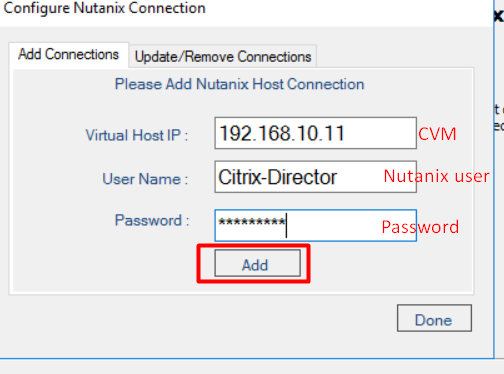
Screenshot_8

If all is well and good you should see the success screen as shown below. Click on “OK”

Screenshot_9

If you have more clusters you can add them now, or click on “Done” to complete the addition of connections. Clicking done will also restart the IIS service.
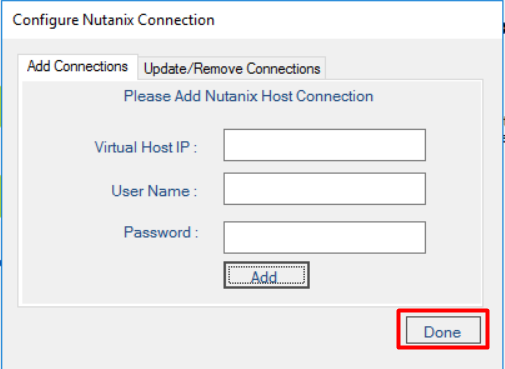
Screenshot_10

Click on “Finish” to complete the installation.
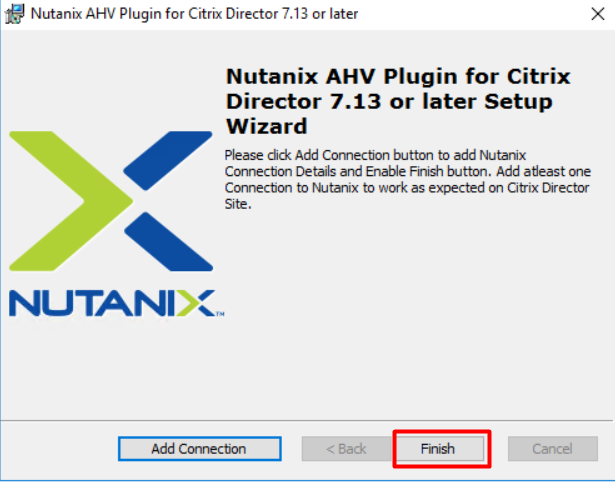
Screenshot_11

Step 3

Now Nutanix plugin installation is complete so we can start Citrix Director to see the integration in action.

So, start Director from the Start Menu
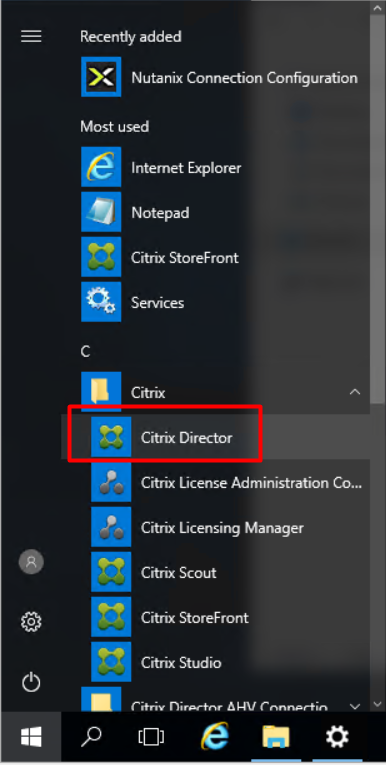
Screenshot_12

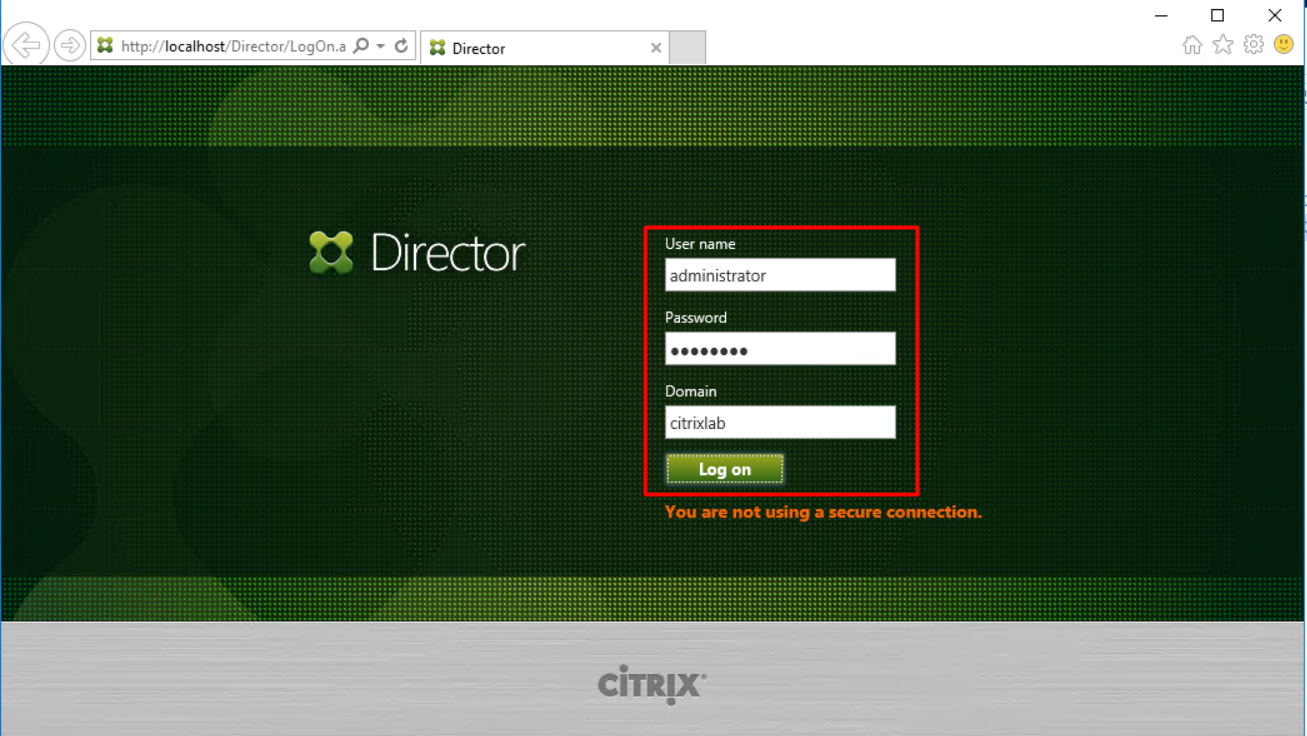
Login into Director

Screenshot_13

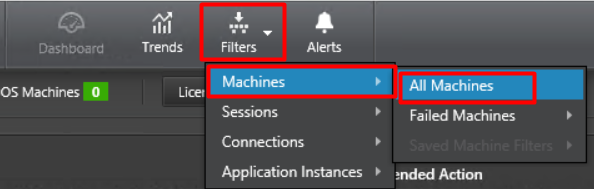
Click on “Filters”, Select “Machines” and then “All Machines”
Screenshot_15

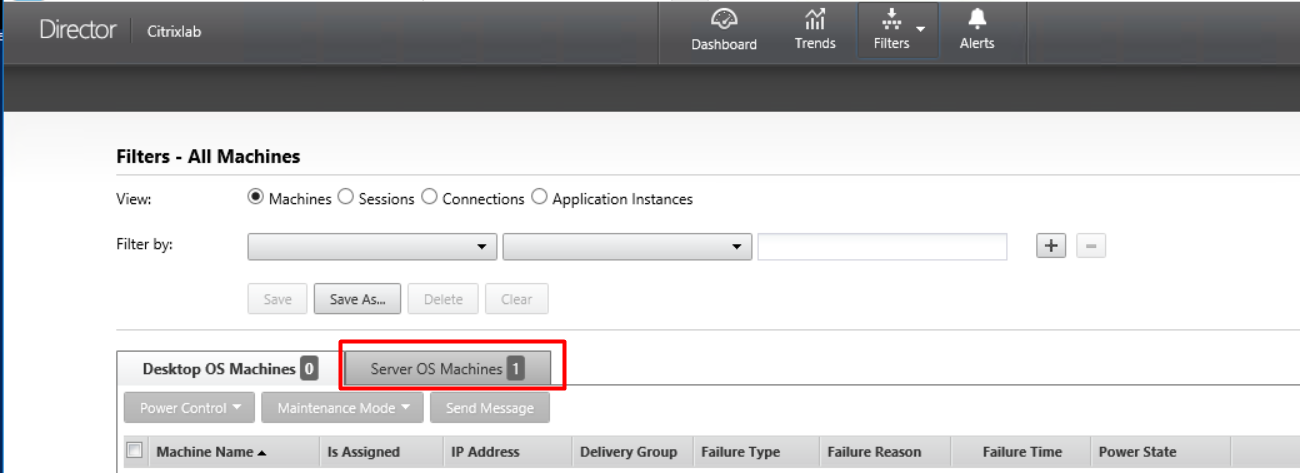
If you have XenDesktops you should see your machines right away, but since I am using XenApp I need to click on “Server OS Machines”
Screenshot_16

Then I will get a list of servers I can view details on, in my case I only have one so I click on it as shown below.

Screenshot_17

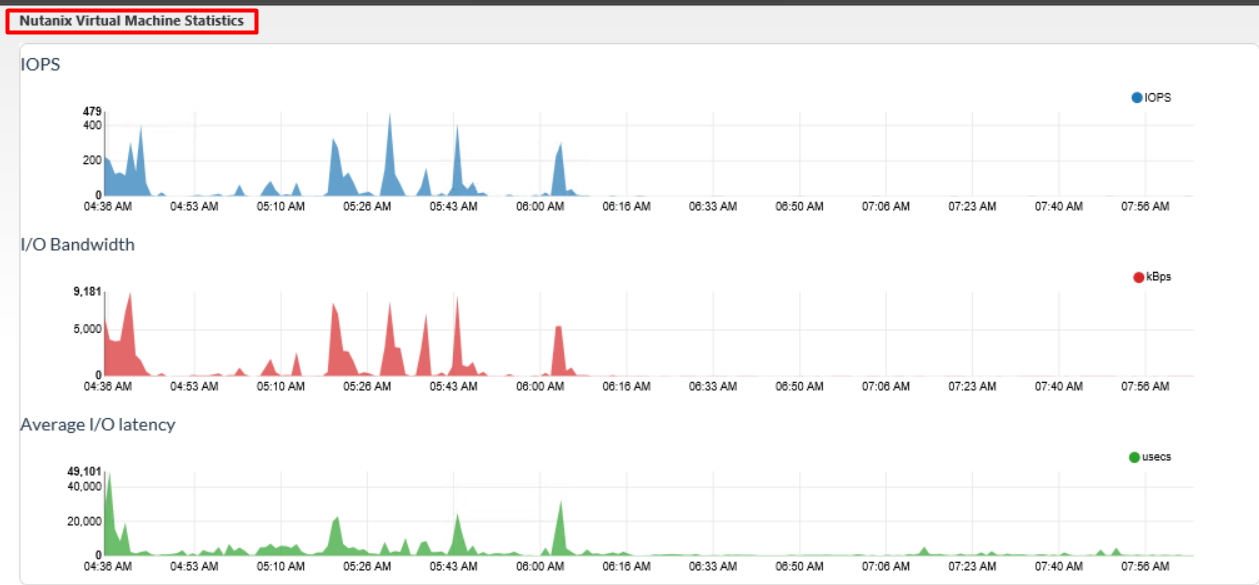
If you scroll down to the bottom of the page you will find a section called “Nutanix Virtual Machine Statistics” when you can see the integration in action.
Screenshot_18

As you can see in the image above the integration pulls in information about IOPS, I/O bandwidth and average I/O latency. With these information, you will be able to spot any spikes or flatlines that the system can’t handle.

I hope this post will be useful when setting up the integration for the first time or just as a small guide to when you need to start over.

Enjoy

Martin